How to Submit Homework Online
A step-by-step guide for Toplogic students and parents
Homework Submission at Toplogic
All Toplogic students are required to submit their completed homework online, whether they attend online or face-to-face classes.
Homework must be scanned or photographed and submitted as a PDF file through the Toplogic website.
Two ways to submit your homework:
Option A: Upload an existing PDF file.
Option B: Use our Photos to PDF feature to create and submit a PDF directly from your phone or other device.
Log In to Your Toplogic Account
- Visit www.toplogic.com.au .
- Click My Account in the top-right corner.
- Log in using your student or parent account.
- Select Student Profile.
- Open the relevant class.
Find the Correct Lesson
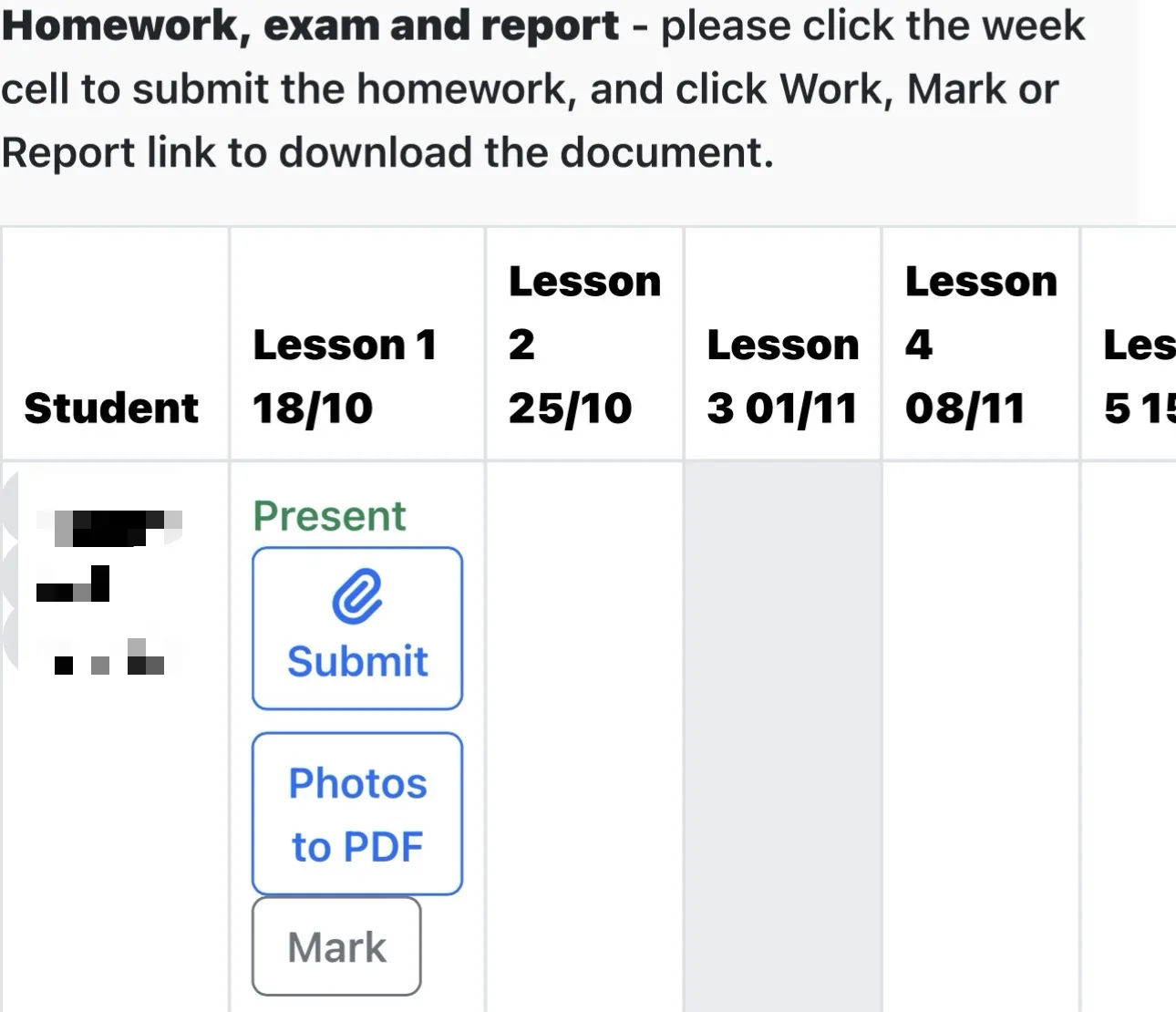
Scroll down to the Homework, Exam and Report table.
Find the correct lesson or week for the homework you wish to submit.
You will see two submission options:
- Submit: Upload an existing PDF file.
- Photos to PDF: Create a PDF from photos of your homework.
Choose Your Submission Method
Upload an Existing PDF
If your completed homework has already been scanned into a single PDF file:
- Click Submit.
- Select your homework PDF.
- Follow the on-screen instructions to upload the file.
- Return to the class report to check your submission.
Use Photos to PDF
If you have not yet scanned your homework, use the built-in Photos to PDF feature.
You can take photos of your completed homework pages and combine them into one PDF file.
Follow Steps 3 to 6 below.
Select or Take Photos
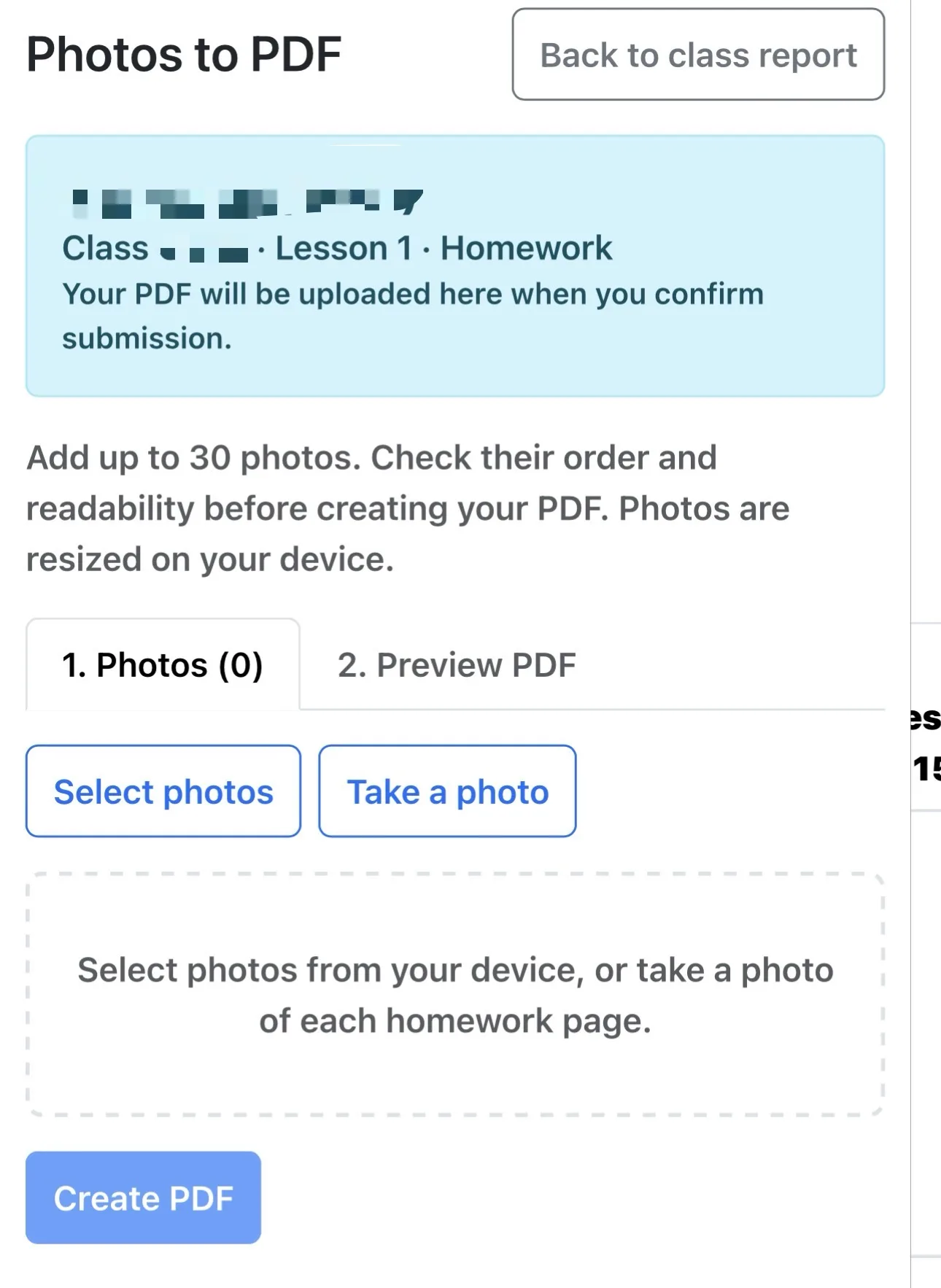
Click Photos to PDF under the relevant lesson.
On the Photos to PDF page, choose:
- Select photos: Choose existing homework photos from your device.
- Take a photo: Use your device's camera to photograph each homework page.
You can add up to 30 photos.
Check and Arrange Your Pages
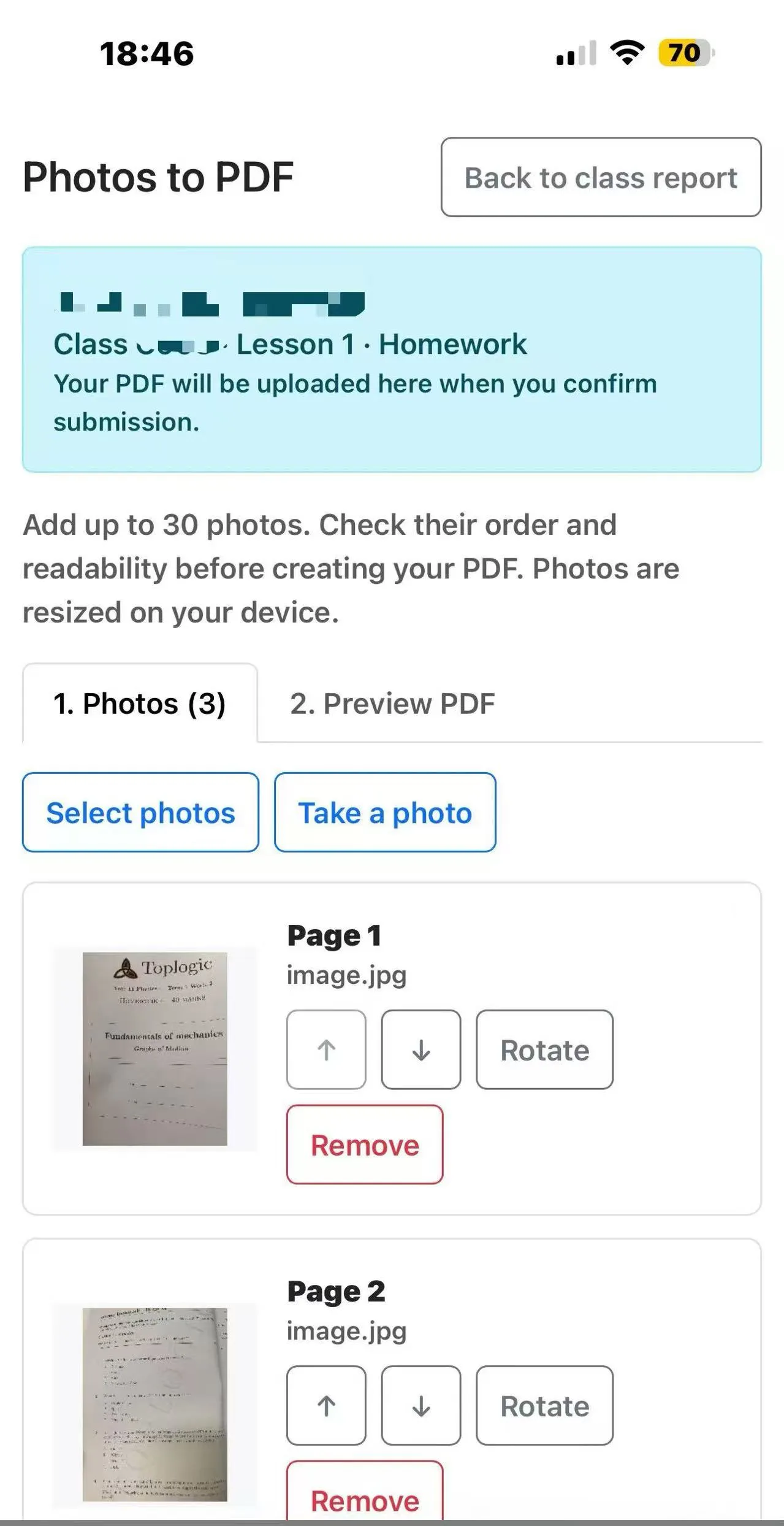
After selecting or taking photos, each image will appear as a separate page.
Arrange and Edit Your Photos
Use the available controls to make sure your homework is organised correctly.
- Up / Down: Change the page order.
- Rotate: Correct sideways photos.
- Remove: Delete unwanted or unclear photos.
Before continuing, check that all pages are included, clearly readable and in the correct order.
Create Your PDF
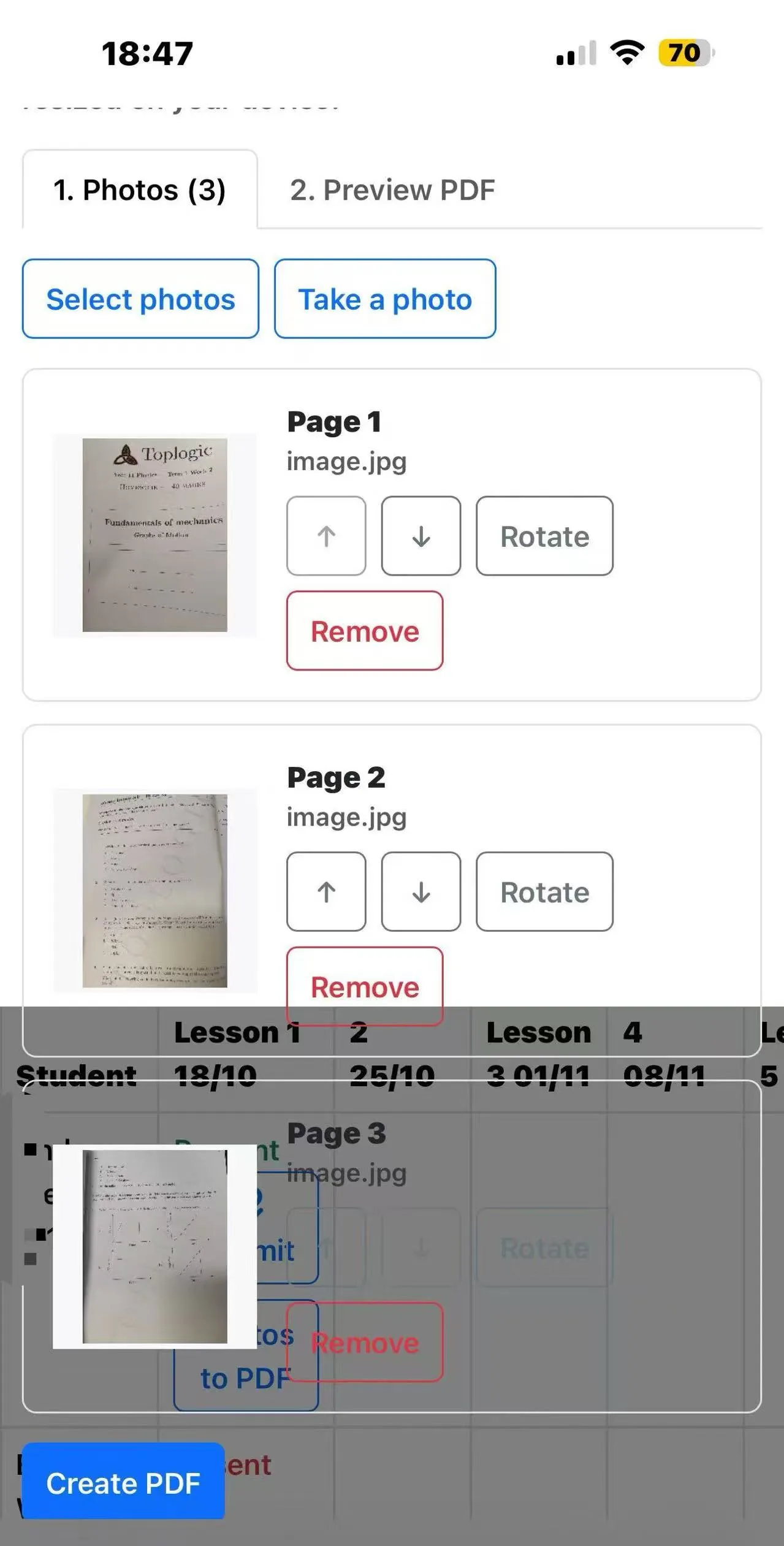
- Check that every homework page has been included.
- Scroll to the bottom of the photo list.
- Click Create PDF.
The system will combine your selected photos into a single PDF file.
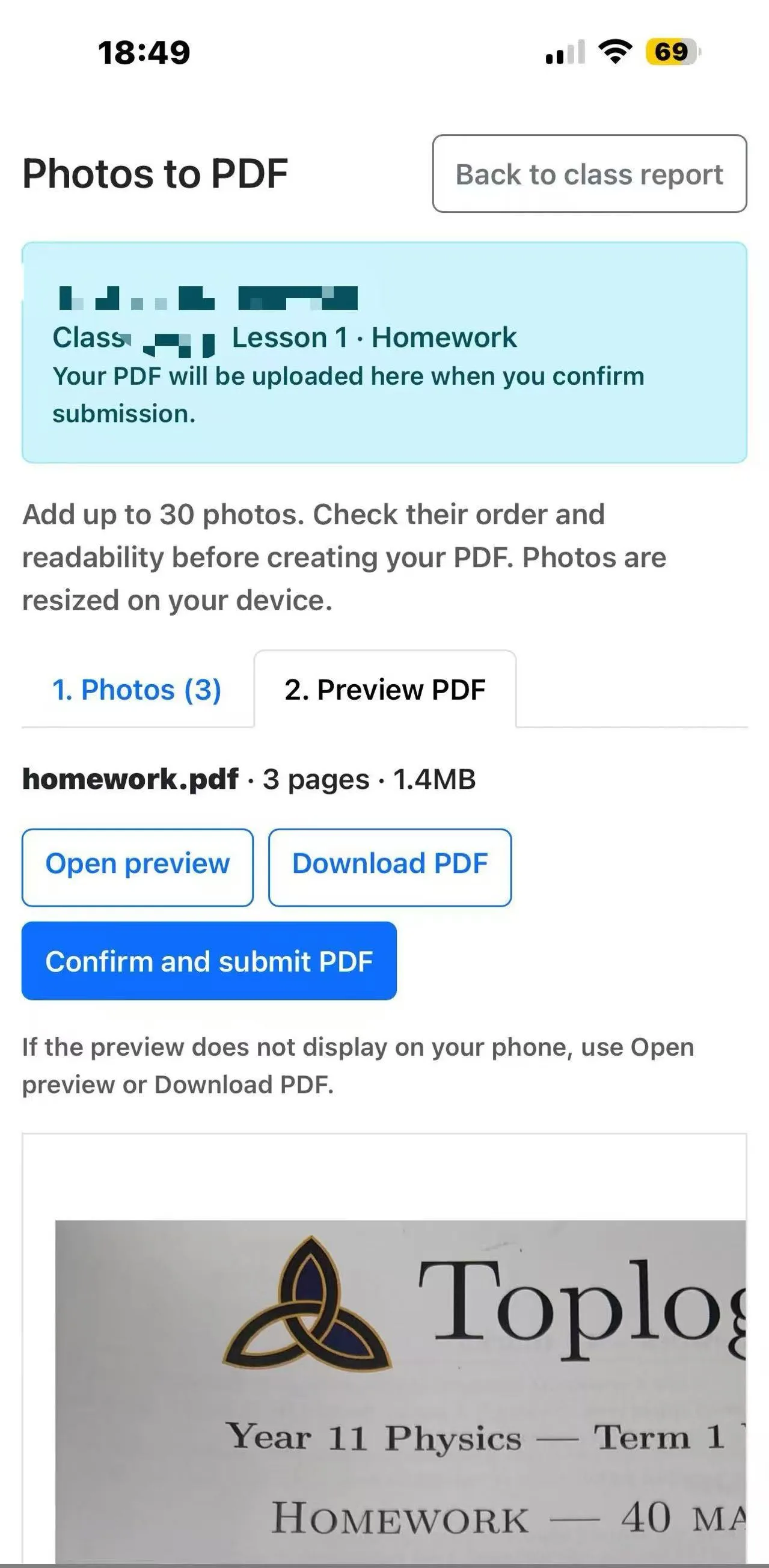
Preview and Submit Your PDF
After creating the PDF, the Preview PDF tab will appear.
You can:
- Click Open preview to view your homework.
- Click Download PDF to save a copy.
- Check that all pages are complete and clearly readable.
When everything is correct, click the blue Confirm and submit PDF button.
Check Your Submission Status
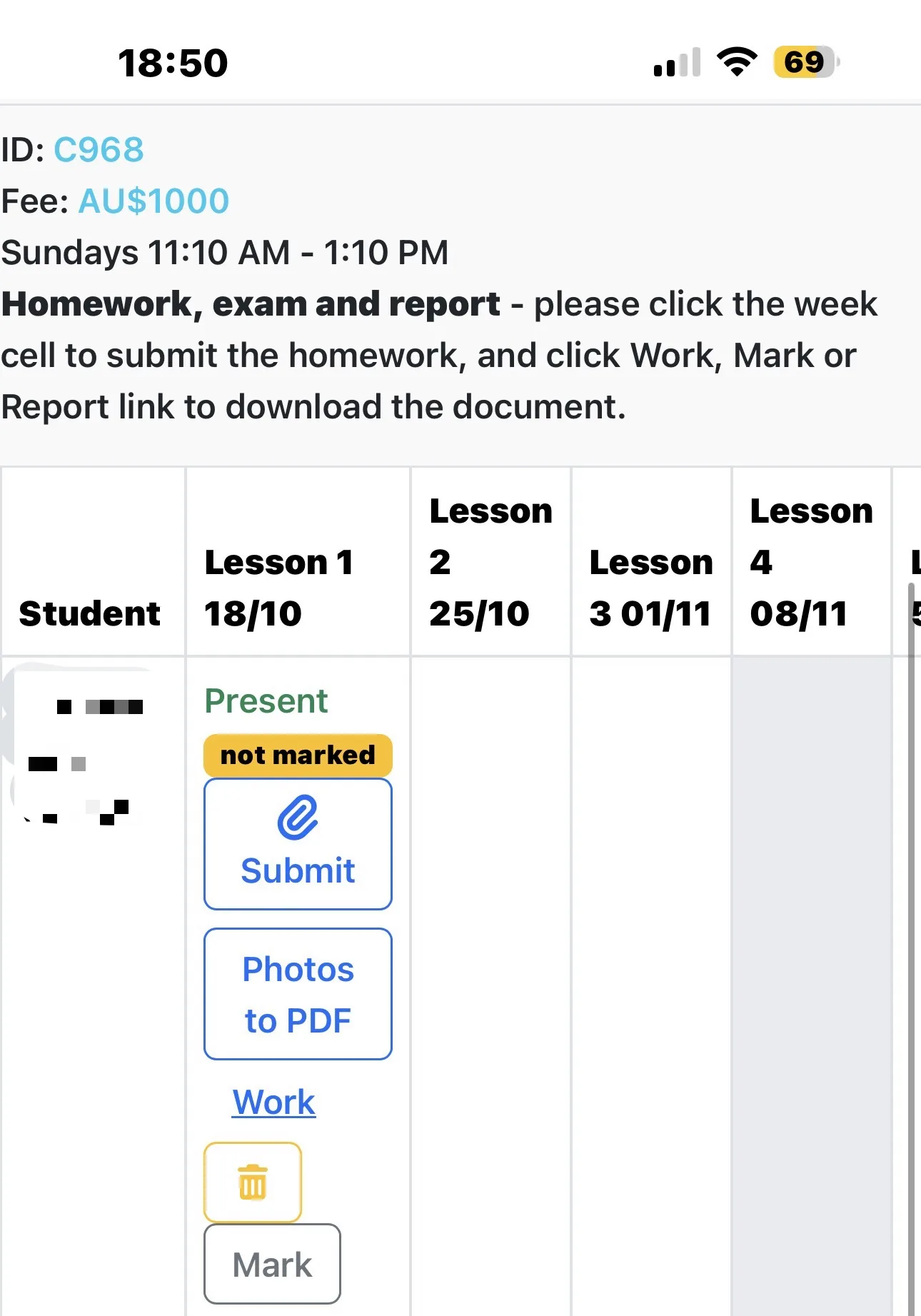
After submitting your homework, return to the Homework, Exam and Report table.
A blue Work link should appear under the corresponding lesson.
The Work link indicates that your homework has been uploaded successfully. Click Work to view the submitted document.
If a yellow not marked label appears, your homework is awaiting marking by your teacher.
Once your teacher has marked the homework, the not marked label will disappear.
Important Reminders
- All online and face-to-face students must submit their homework online.
- Homework must be submitted as a PDF file.
- Always select the correct class and lesson.
- Make sure every page is included and clearly readable.
- If using Photos to PDF, remember to click Confirm and submit PDF.
- Check for the Work link after submission.
If you experience any difficulties submitting your homework, please contact the Toplogic team for assistance.